> ## Documentation Index
> Fetch the complete documentation index at: https://mux.coder.com/llms.txt
> Use this file to discover all available pages before exploring further.
# Agentic Git Identity
> Configure a separate Git identity for AI-generated commits
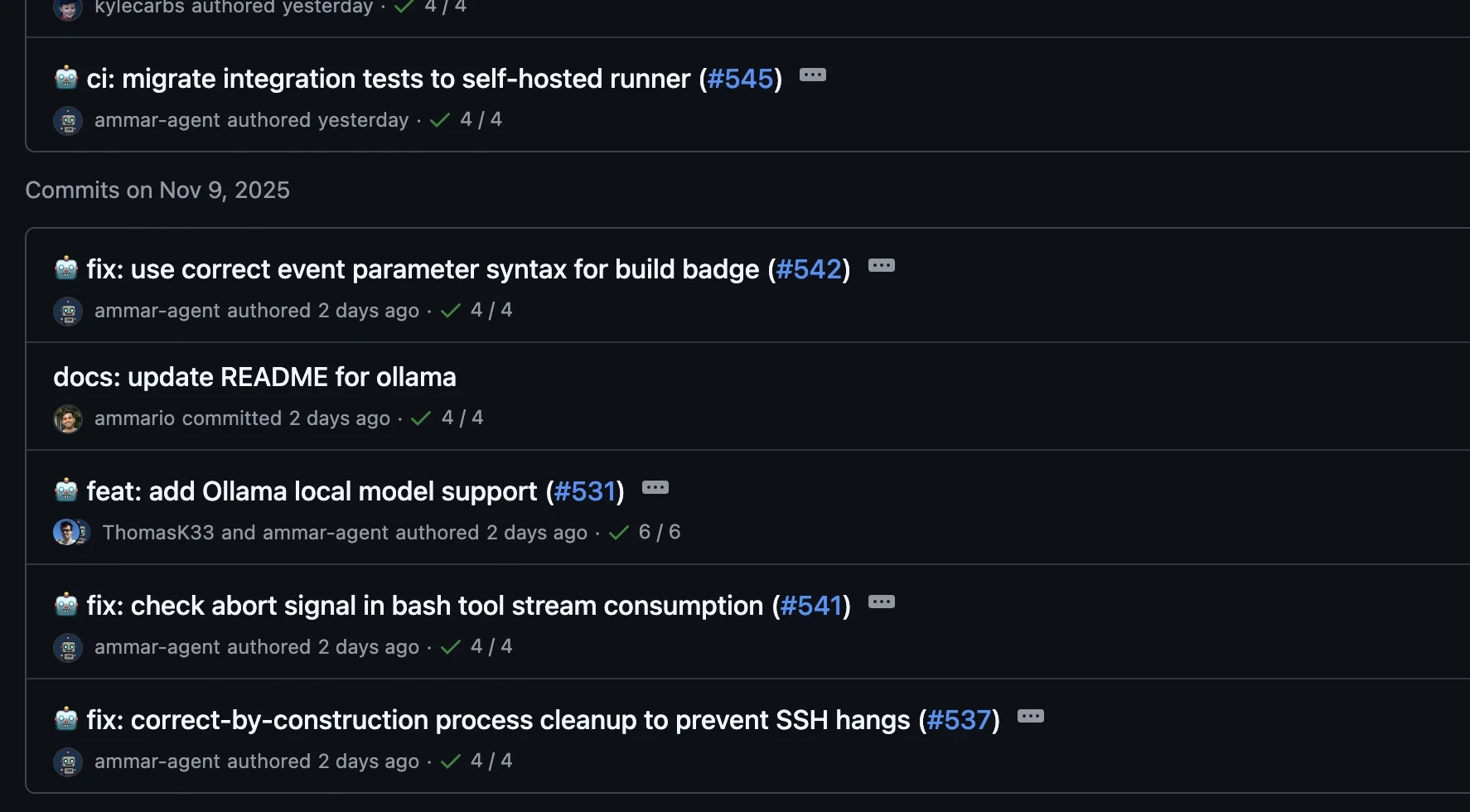
Configure Mux to use a separate Git identity for AI-generated commits, making it easy to distinguish between human and AI contributions. Reasons to use a separate identity include:
* Clear attribution
* Preventing (accidental) destructive actions
* Enforcing review flow, e.g. preventing AI from merging into `main` while allowing humans
 ## Setup Overview
1. Create a GitHub account for your agent (e.g., `username-agent`)
2. Generate a Classic GitHub token
3. Configure Git to use the agent identity
4. Configure Git credentials to use the token
## Step 1: Create Agent GitHub Account
Create a separate GitHub account for your agent:
1. Sign up at [github.com/signup](https://github.com/signup)
2. Use a distinctive username (e.g., `yourname-agent`, `yourname-ai`)
3. Use a separate email (GitHub allows plus-addressing: `yourname+ai@example.com`)
This is optional but recommended. You can also use your main account with a different email/name.
## Step 2: Generate Classic GitHub Token
Classic tokens are easier to configure than fine-grained tokens for repository access.
1. Log into your agent GitHub account
2. Go to [Settings → Developer settings → Personal access tokens → Tokens (classic)](https://github.com/settings/tokens)
3. Click "Generate new token (classic)"
4. Configure the token:
* **Note**: "Mux agent token" (or similar)
* **Expiration**: Choose based on your security preferences
* **Scopes**: Select `repo` (Full control of private repositories)
5. Click "Generate token"
6. **Copy the token immediately** - you won't see it again
## Step 3: Configure Git Identity
Add the Git identity environment variables as [Project Secrets](/config/project-secrets) in Mux:
1. Open Mux and find your project in the sidebar
2. Click the 🔑 key icon to open the secrets modal
3. Add the following four secrets:
* `GIT_AUTHOR_NAME` = `Your Name (Agent)`
* `GIT_AUTHOR_EMAIL` = `yourname+ai@example.com`
* `GIT_COMMITTER_NAME` = `Your Name (Agent)`
* `GIT_COMMITTER_EMAIL` = `yourname+ai@example.com`
4. Click "Save"
These environment variables will be automatically injected when the agent runs Git commands in that project.
If you need the agent identity outside of Mux, you can alternatively set these as global
environment variables in your shell configuration (`~/.zshrc`, `~/.bashrc`, etc.)
## Step 4: Configure GitHub Authentication
### Install GitHub CLI
If you don't have it:
```bash theme={null}
# macOS
brew install gh
# Windows
winget install --id GitHub.cli
# Linux
# See https://github.com/cli/cli/blob/trunk/docs/install_linux.md
```
### Configure Git Credential Helper
Set up Git to use the GitHub CLI for authentication. The recommended approach is to use `gh auth setup-git`, which scopes the credential helper to GitHub only:
```bash theme={null}
# Configure gh as credential helper for GitHub (recommended)
gh auth setup-git
```
This configures Git to use `gh` for GitHub authentication while preserving your existing credential helpers for other Git hosts.
**Alternative: Manual configuration (for advanced users)**
If you need more control or want to completely replace existing credential helpers:
```bash theme={null}
# Scope to GitHub only (preserves other credential helpers)
git config --global credential.https://github.com.helper '!gh auth git-credential'
# OR: Replace all credential helpers (may break non-GitHub authentication)
git config --global --unset-all credential.helper
git config --global credential.helper ""
git config --global --add credential.helper '!gh auth git-credential'
```
The "replace all" approach will disable platform keychain helpers and may break Git authentication
for non-GitHub remotes (GitLab, Bitbucket, etc.).
## Alternative: Co-Author Attribution
If you prefer to keep using your personal GitHub account but still want clear attribution for AI-generated commits, you can add a `Co-authored-by` trailer to commits.
The simplest approach is to ask the agent via system prompt to include a `Co-authored-by: AI Assistant ` trailer in commit messages. This works well in practice since agents generally follow formatting instructions reliably.
For guaranteed attribution, you can use Git's built-in hooks instead:
### Using a Git Hook
Create a `prepare-commit-msg` hook that adds co-author attribution only when running inside Mux:
```bash theme={null}
#!/bin/bash
# .git/hooks/prepare-commit-msg
COMMIT_MSG_FILE=$1
COMMIT_SOURCE=$2
# Only add co-author when running in Mux
if [ -z "$MUX_RUNTIME" ]; then
exit 0
fi
# Skip merge commits
if [ "$COMMIT_SOURCE" = "merge" ]; then
exit 0
fi
# Only add if not already present
if ! grep -q "Co-authored-by:" "$COMMIT_MSG_FILE"; then
echo "" >> "$COMMIT_MSG_FILE"
echo "Co-authored-by: AI Assistant " >> "$COMMIT_MSG_FILE"
fi
```
Make it executable:
```bash theme={null}
chmod +x .git/hooks/prepare-commit-msg
```
This approach uses your normal Git identity for commits, but adds a trailer indicating AI
involvement. The hook only activates inside Mux workspaces (detected via `MUX_RUNTIME`).
### Comparison
| Approach | Pros | Cons |
| ------------------- | ---------------------------------------- | ------------------------------ |
| Separate account | Full separation, branch protection rules | Requires second GitHub account |
| Co-authored-by hook | Single account, clear attribution | Less separation, hook per-repo |
## Setup Overview
1. Create a GitHub account for your agent (e.g., `username-agent`)
2. Generate a Classic GitHub token
3. Configure Git to use the agent identity
4. Configure Git credentials to use the token
## Step 1: Create Agent GitHub Account
Create a separate GitHub account for your agent:
1. Sign up at [github.com/signup](https://github.com/signup)
2. Use a distinctive username (e.g., `yourname-agent`, `yourname-ai`)
3. Use a separate email (GitHub allows plus-addressing: `yourname+ai@example.com`)
This is optional but recommended. You can also use your main account with a different email/name.
## Step 2: Generate Classic GitHub Token
Classic tokens are easier to configure than fine-grained tokens for repository access.
1. Log into your agent GitHub account
2. Go to [Settings → Developer settings → Personal access tokens → Tokens (classic)](https://github.com/settings/tokens)
3. Click "Generate new token (classic)"
4. Configure the token:
* **Note**: "Mux agent token" (or similar)
* **Expiration**: Choose based on your security preferences
* **Scopes**: Select `repo` (Full control of private repositories)
5. Click "Generate token"
6. **Copy the token immediately** - you won't see it again
## Step 3: Configure Git Identity
Add the Git identity environment variables as [Project Secrets](/config/project-secrets) in Mux:
1. Open Mux and find your project in the sidebar
2. Click the 🔑 key icon to open the secrets modal
3. Add the following four secrets:
* `GIT_AUTHOR_NAME` = `Your Name (Agent)`
* `GIT_AUTHOR_EMAIL` = `yourname+ai@example.com`
* `GIT_COMMITTER_NAME` = `Your Name (Agent)`
* `GIT_COMMITTER_EMAIL` = `yourname+ai@example.com`
4. Click "Save"
These environment variables will be automatically injected when the agent runs Git commands in that project.
If you need the agent identity outside of Mux, you can alternatively set these as global
environment variables in your shell configuration (`~/.zshrc`, `~/.bashrc`, etc.)
## Step 4: Configure GitHub Authentication
### Install GitHub CLI
If you don't have it:
```bash theme={null}
# macOS
brew install gh
# Windows
winget install --id GitHub.cli
# Linux
# See https://github.com/cli/cli/blob/trunk/docs/install_linux.md
```
### Configure Git Credential Helper
Set up Git to use the GitHub CLI for authentication. The recommended approach is to use `gh auth setup-git`, which scopes the credential helper to GitHub only:
```bash theme={null}
# Configure gh as credential helper for GitHub (recommended)
gh auth setup-git
```
This configures Git to use `gh` for GitHub authentication while preserving your existing credential helpers for other Git hosts.
**Alternative: Manual configuration (for advanced users)**
If you need more control or want to completely replace existing credential helpers:
```bash theme={null}
# Scope to GitHub only (preserves other credential helpers)
git config --global credential.https://github.com.helper '!gh auth git-credential'
# OR: Replace all credential helpers (may break non-GitHub authentication)
git config --global --unset-all credential.helper
git config --global credential.helper ""
git config --global --add credential.helper '!gh auth git-credential'
```
The "replace all" approach will disable platform keychain helpers and may break Git authentication
for non-GitHub remotes (GitLab, Bitbucket, etc.).
## Alternative: Co-Author Attribution
If you prefer to keep using your personal GitHub account but still want clear attribution for AI-generated commits, you can add a `Co-authored-by` trailer to commits.
The simplest approach is to ask the agent via system prompt to include a `Co-authored-by: AI Assistant ` trailer in commit messages. This works well in practice since agents generally follow formatting instructions reliably.
For guaranteed attribution, you can use Git's built-in hooks instead:
### Using a Git Hook
Create a `prepare-commit-msg` hook that adds co-author attribution only when running inside Mux:
```bash theme={null}
#!/bin/bash
# .git/hooks/prepare-commit-msg
COMMIT_MSG_FILE=$1
COMMIT_SOURCE=$2
# Only add co-author when running in Mux
if [ -z "$MUX_RUNTIME" ]; then
exit 0
fi
# Skip merge commits
if [ "$COMMIT_SOURCE" = "merge" ]; then
exit 0
fi
# Only add if not already present
if ! grep -q "Co-authored-by:" "$COMMIT_MSG_FILE"; then
echo "" >> "$COMMIT_MSG_FILE"
echo "Co-authored-by: AI Assistant " >> "$COMMIT_MSG_FILE"
fi
```
Make it executable:
```bash theme={null}
chmod +x .git/hooks/prepare-commit-msg
```
This approach uses your normal Git identity for commits, but adds a trailer indicating AI
involvement. The hook only activates inside Mux workspaces (detected via `MUX_RUNTIME`).
### Comparison
| Approach | Pros | Cons |
| ------------------- | ---------------------------------------- | ------------------------------ |
| Separate account | Full separation, branch protection rules | Requires second GitHub account |
| Co-authored-by hook | Single account, clear attribution | Less separation, hook per-repo |